How do I make a USB stick bootable with Windows 7 [7 Install Windows from USB Stick]

Advertisements

Last week I had to solve a small problem a mini laptop Asus Eee PC he cracked operating system (Windows XP). I tried to get into Windows in many ways but none worked. In addition, the owner wanted to give up Windows XP in favor of the Windows 7.
Installation a new operating system on a Eee PC would be very simple if the old operating system would be functional and could launch the Windows 7 below it. Another option would be simple to install using a DVD bootableBut as we have at hand a DVD optical driveThe only solution remains 7 install Windows from a USB Stick bootable.

How create a Bootable USB Stick and how to install Windows from USB Stick 7.

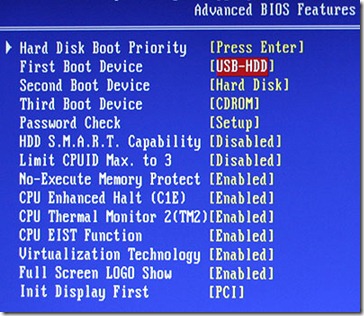
Before you start working, make sure that you have at hand a Minimum 3 GB USB Stick and the system (laptopSite or PCDisk) on which you want to install Windows from USB stick 7 has a BIOS which would enable device booting from external sites. This thing you can check entering BIOS "Hard Disk Boot Priority". If you find the option boot from USBYou have to set it to "First Boot Device".

BIOS USB BOOT OPTION

USB stick bootable with Windows 7 can create a simple Windows 7. Here steps for you to create a bootable stick with Windows 7 :

1. Attach the USB stick (preferably greater than 4GB) Your system and make a backup all data on it. Before becoming bootable USB stick will be formatted. After format all data will be erased from it.

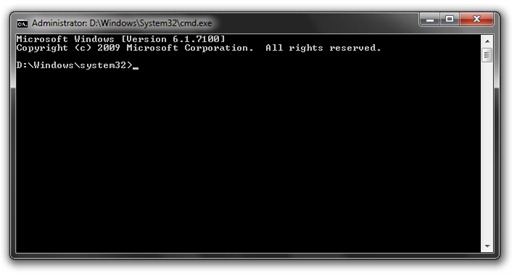
2. Open Command PromptWith the Administrator privileges. Click on Start Menu -> type "CMD"In"Search programs and files"-> Right-click"cmd"-> Click"Run as administrator".

cmd run as administrator

3. In Command Prompt type the following orders:

Diskpart and press enter
LIST DISK and press enter

After you click LIST DISK command will need to identify what number is your USB

list disk cmd

In our case it is the 7656 MB (Disk 2).

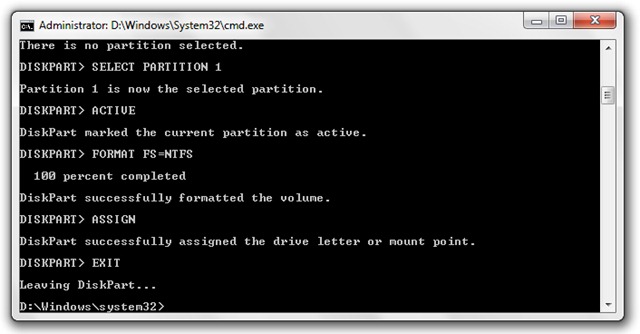
4. Follows a series of commands in CMD which will have to format the USB stick. After each command line press enter:

SELECT DISK 2 (Check the disk number for your case is very important!)

CLEAN

CREATE PARTITION PRIMARY

SELECT PARTITION 1

ACTIVE

FORMAT FS = NTFS (Will begin the format that it can take up to several minutes. Wait to get to 100%)

ASSIGN

EXIT
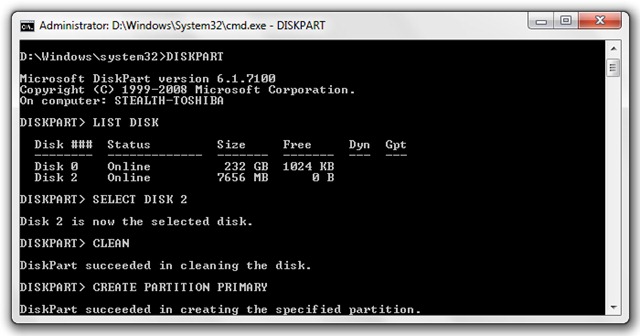
make boot usb windows 7

make usb windows 7 boot 2

Once finished giving these commands and the result is that in the pictures above, minimize the CMD and insert DVD with Windows 7 in optical drive.

5. Identify Drive LetterThe (letter) USBSite and that of DVDSite with Windows 7.

In our case F is the optical drive and J Is USB stick.

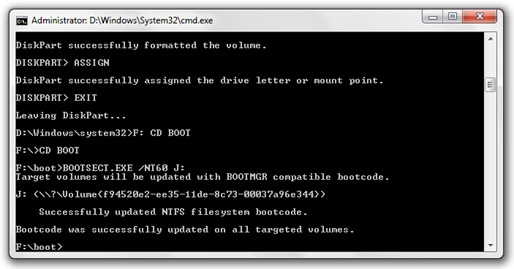
6. After you have entered your DVD with Windows drive letter 7 and have identified the two devices, back in CMD and type the following commands:

F: CD BOOT and press enter. F is the DVD drive letter.

CD BOOT and press enter.

Bootsect.exe / NT60 J: (J USB stick)

After these commands you will receive a message like:

Target Volumes Will Be updated with Bootmgr compatible bootcode.

J: <\? F9452 Volume {....}>

Successfully updated filesystem bootcode NTF.

Bootcode was Successfully updated on all targeted volumes.

creaza usb stick bootabil 3

7. Copy Windows DVD contents to USB Stick 7. Copy & Paste.

Upon completion of the copying process have a Bootable USB Stick Windows 7. Follow 7 install Windows from a USB Stick.

Install Windows 7 (on USB Stick) on an Eee PC (or a laptop / PC without DVD optical drive)

1. Attach USB to your laptop (with laptop closed)

2. Turn on your laptop and select the Boot Manager (immediately after power is an option) your stick

3. Follow the standard installation process of Windows 7.

This tutorial has been tested by us on a ASUS Eee PC. Stick bootable Windows was created 7.

In Windows XP operating systems it is possible that the above tutorial will not be helpful. I'll soon make a stick bootable Windows XP and to test.

Back ;-)

Advertisements

PROGRAMS, IT tutorials and news by e-mail

SAVE TO FAVORITES / bookmarks

COMMENTS

65 Comments: How make a bootable USB stick with Windows 7 [7 Install Windows from USB Stick] #
  1. sesciofra says:

    after write diskpart in cmd there are some information about my pc and not let me write any command? someone can give me an answer?

  2. cristian says:

    hello!
    thanks to you, I made the stick bootable. all good up here. The booted from it, my laptop asus eee pc 1015pem nor demons does not want to boot the all keystrokes typed in every way. However, I installed on the laptop w7 after starting the laptop and selecting the stick installation, but! the stick can only select option x64 or 80 the rest. the dvd could choose x32, x64 installation (tested on PCs 2).

    If I understand well, the conclusion I drew is that if I stick x7 w32 have to "maneuver" on a PC with w7 x32? conclusion is correct? Thanks in advance!

    • mmg1818 says:

      if you win and want to copy a x86. x64 iso on the stick does not work using USB DVD Download Tool Windows 7, picture 8 32 win iso usb boot error created 64

      http://i45.servimg.com/u/f45/12/25/89/46/win_8_10.png

      • cristian says:

        I solved the problem. the only thing I do not understand is why they fail to make the laptop to boot from the stick when you start your computer.

        mention that I installed as I said above, (instant stick with open laptop), but I still wanted to delete all (w old data and reformat partitions, etc.). I failed. asus eee pc seems 1015pem has the BIOS option to boot from USB, has only version of "removable disk" which from what I've tried is not the same.
        Thank you!

        • stealth says:

          go to removable disk and USB stick. most likely not boot from the stick so that the stick is not formatted fat32. I met problem on a Sony Vaio, may be to other brands. recommend creating a bootable disk utility RMPrepusb (required format is selected fat32).

          • mmg1818 says:

            All sticks are standard fat32 believe I have not seen stick to buy it at the store and be formatted NTFS.

            When copying images stick the program automatically formats NTFS stick.

          • stealth says:

            with RMPrepusb you have the option to format the stick fat32 you copy the installation image, is the only application that I managed to create a stick to boot on sony vaio supplied

  3. micu says:

    I do not have Cd "rom laptop, how to proceed? for example if I windowsu in partition D, I mean how can the partition d stick?

  4. Smailey says:

    one thousand gives me an error when giving assign ........ what can I do????

  5. ESD says:

    ok ... so I do not have a drive to read CDs and even CD with Windows 7.nu can stick bootable with Windows that I have already installed?

  6. mmg1818 says:

    download fast until you delete that links

    microsoft original image

    Windows 7 Home Premium x86 SP1 - X17-24208.iso (bootable)

    Windows 7 Home Premium x64 SP1 - X17-24209.iso (bootable)

    Windows 7 Professional x86 SP1 - X17-24280.iso (bootable)

    Windows 7 Professional x64 SP1 - X17-24281.iso (bootable)

    Ultimate Windows 7 x86 SP1 - X17-24394.iso (bootable)

    Ultimate Windows 7 x64 SP1 - X17-24395.iso (bootable)

    These images after downloading, You Can Burn Them to DVD without any burning software from Windows 7 by right Clicking on the image

    source

    http://webtrickz.com/official-windows-7-sp1-integrated-direct-download-links

  7. zahe says:

    7 really need windows .. I tried on XP and can not format the stick .. NTFS format .. 7 windows so rullz

Comment?

Posts related

Search on Google ::

how to install a wind 7 on bottles, How to install windows from flash 7, Placing a stick windows 7, Windows installation 7 the stick, how to install windows from usb 7, 7 installing windows from usb7, install windows from usb 7, how to install windows from usb, How do I install windows on stick 7, installare come tasto usb windows 7 give quick scelta, "À partir du 7 windows installer hard disque", 7 can install windows on stick, how to install windows usb stik, how to install windows xp on chiaveta, how to put internet on 64 exporer Depe 32,
ArabicBulgarianChinese (Simplified)Chinese (Traditional)CroatianCzechDanishDutchEnglishEstonianFinnishFrenchGermanGreekHebrewHungarianIndonesianItalianJapaneseKoreanLatvianLithuanianNorwegianPolishPortugueseRomanianRussianSerbianSlovakSlovenianSpanishTurkishUkrainian